
GoPalax
Power Every Panel.
A closed-LAN video wall CMS — instant, same-second content switching across every screen on your network, with no cloud dependency.
Get in touchWhy it's different
No cloud, no internet dependency
Runs entirely on your own local network. If your internet goes down, nothing about your screens is affected — it was built to never depend on an outside connection.
Same-second synchronized switching
Every screen keeps one always-open connection to the Controller. When you switch content, the server tells every screen at once — not a polling loop checking in every few seconds, an instant push.
Offline-resilient by design
Every screen stores its own content locally. If a screen loses the network briefly, it doesn't go blank — it just keeps playing whatever it last showed until it reconnects.
Combined Video Wall
One image or video, genuinely split across multiple physical screens — GPU-accelerated on your Controller PC, not a cropped illusion stitched together after the fact.
Whatever's on the panel — GoPalax powers it. Power Every Panel.
Built to scale with your wall
Proven in production at 25 displays on a single Controller. The architecture — dynamic display registration, a WebSocket broadcast hub, a configurable rendering pipeline — carries no hardcoded ceiling, so it scales comfortably to 50+ displays, and further still with the right network and hardware behind it. From a single screen to a full corporate video wall.
See it running
Real captures from the actual admin panel — not mockups.
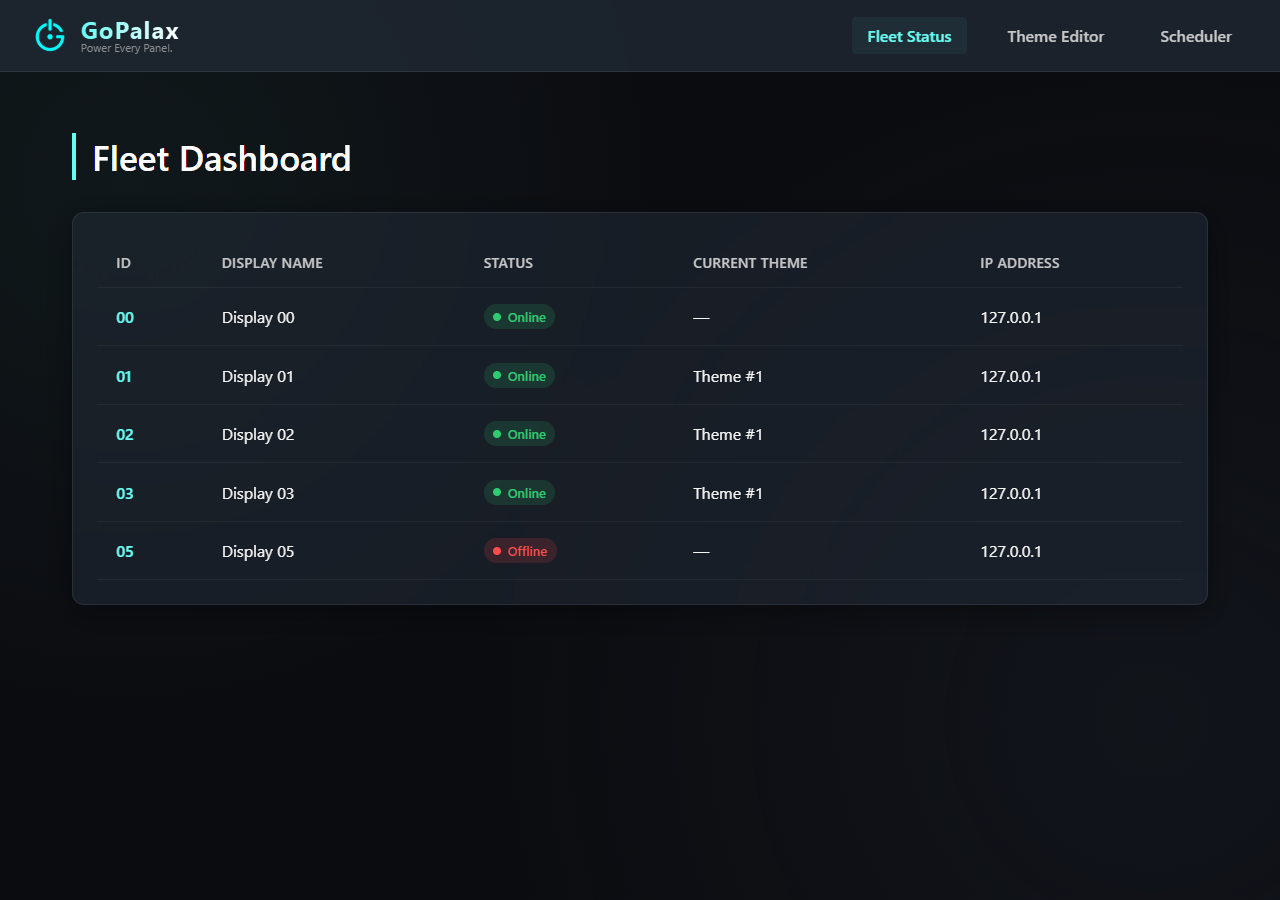
Fleet Dashboard — live online/offline status and current theme for every display, at a glance.
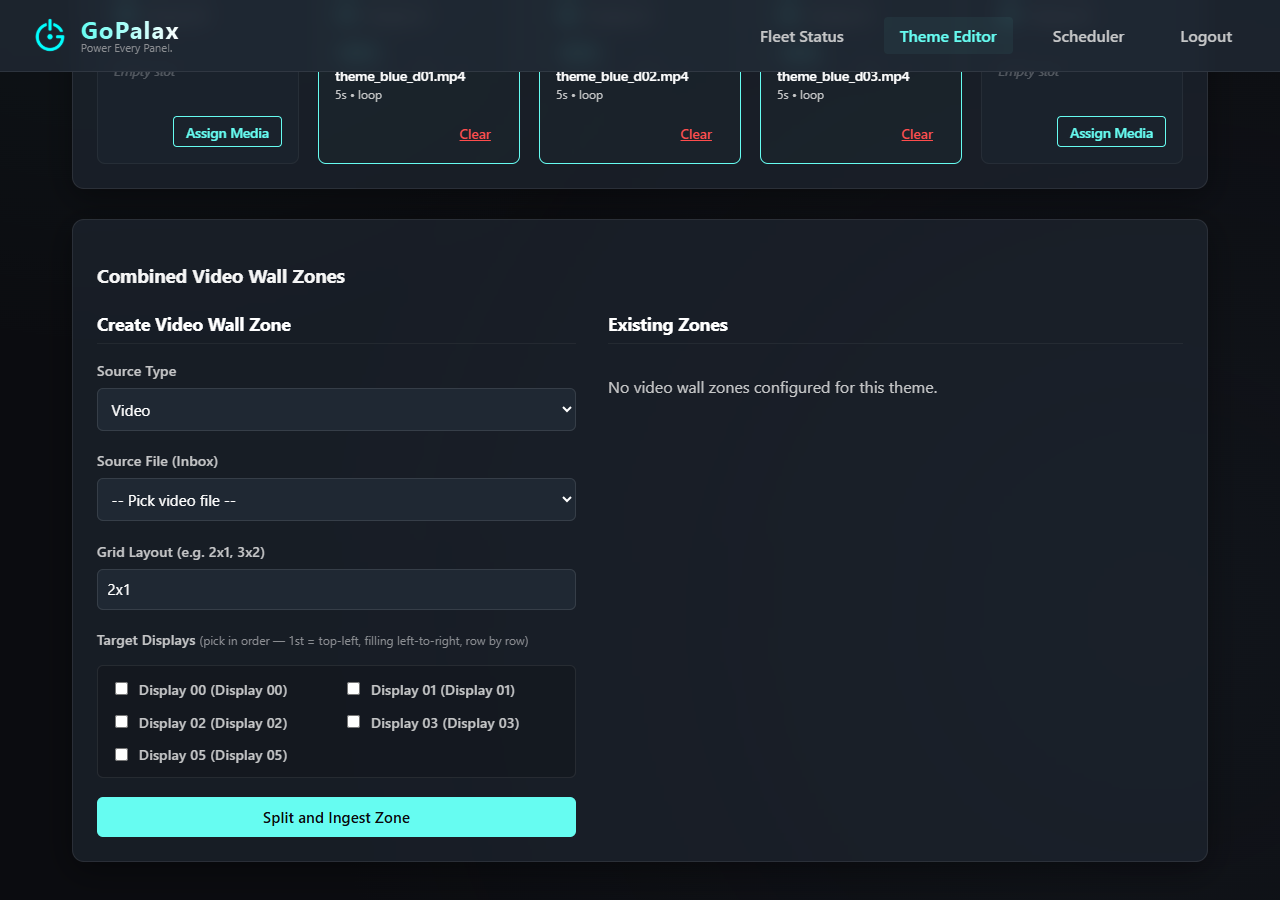
Theme Editor — assign an image or video to each display, per theme.
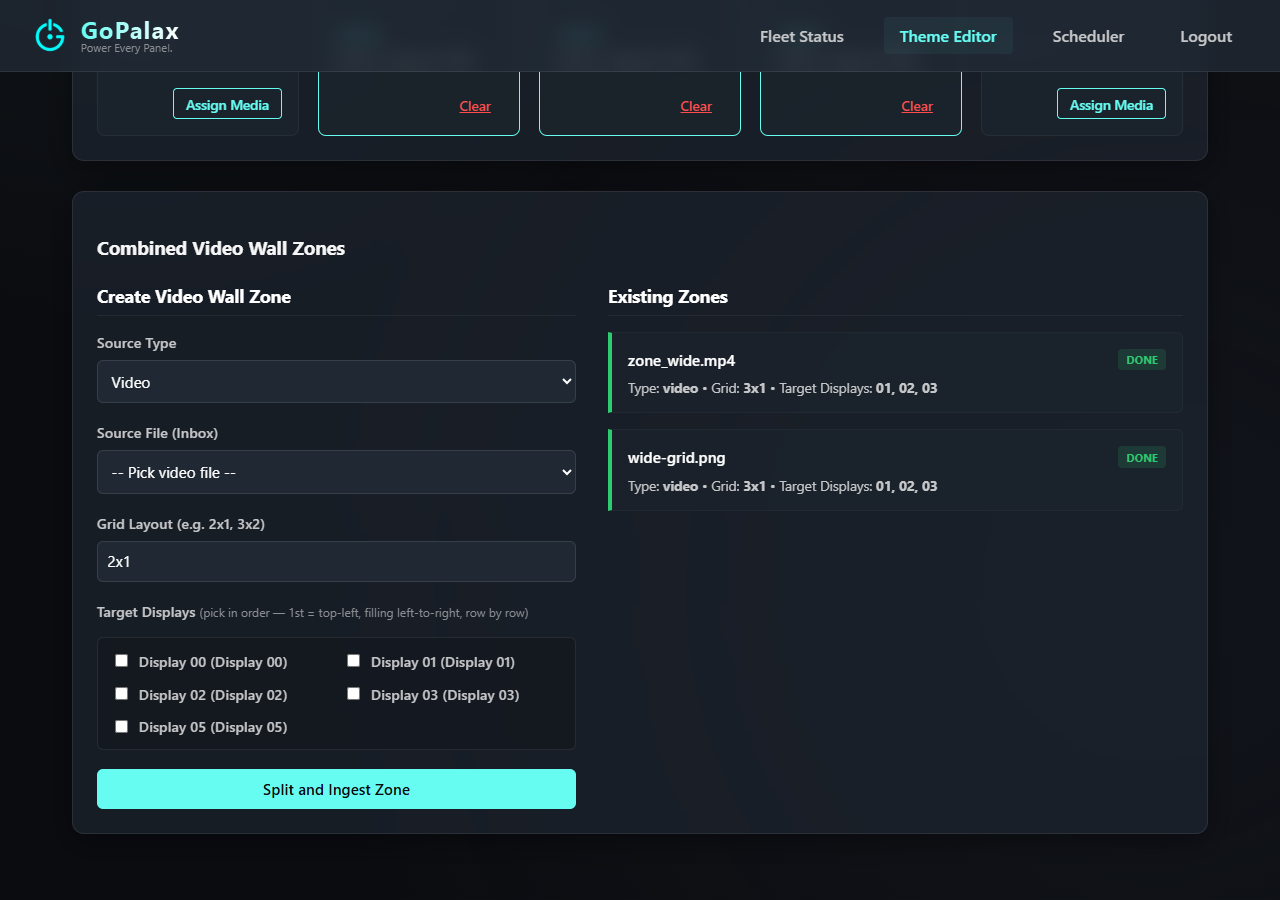
Combined Video Wall — split one source across a grid of displays; existing zones and their status, all in one place.
How it works
-
1
Assign content
Give each display its own image or video, or split one large source across several displays as a Combined Video Wall zone.
-
2
Activate
Pick a theme and click activate — no per-display action needed.
-
3
Every screen updates live
The switch lands on every screen in the same second, whether it's 3 displays or 30.